Some of the most obvious ideas in the
universe are also the most abstract, and it seems like the definition
of a certain type of object is just such an abstract concept. Lets
imagine for a moment that you see a bowl or a plate. You immediately
recognize the object and place it in a category, the plate category
say. If asked why you believed that the object in question was a
plate, you may have some difficulty in explaining why you felt it was
a plate.
Some time ago, after coming into
contact with the idea of object oriented programming I began to
wonder about what a real object was. This led me on the journey that
I here attempt to take you on. The philosophical idea in question is
'what is an object?' This is actually a problematic question; I asked my friend and philosopher, Mr. Rodney Chlebek, this question, and in response he wrote quite an interesting
post in which he argues that their are no objects bigger than particles. In an esoteric way I certainly might agree, although I definitely am not enough of a philosopher to have a very educated response there. That said, I do believe that objects do exist in a sense that Chlebek is not examining. I am not per se disagreeing, actually I am extending his argument. I believe that objects, like bowls and plates, exist in a special virtual world of cognition where an object is nothing more than an
instance of a
class. In this virtual world, objects exist in the brains of humans as well as in the computers we create. Let's examine this claim more deeply...
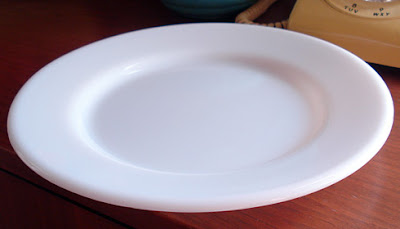 |
| Does this plate really exist? How do I know it is a plate? |
To be clear, I might as well define our terms: In this article, we will call these categories that we recognize objects by as
classes, and an individual example example of a certain class we call an
instance of that class. These terms are obviously borrowed from computer science, and we use them in order to be able to better understand the similarity between the "real objects" that we encounter every day, and the "virtual objects" we encounter in software. Of course, if you follow Chlebek's thinking, and my extension of his thought described above, this distinction is totally artificial. The plate or bowl we earlier spoke about, you recognized not as simply a discrete object, but as a member of a larger category. Of course, you may have placed the plate into more than one category.
Lets use the "real" plate object again and describe it with the new vocabulary we just introduced: The specific
object you hold and call a '
plate' is an object that is an
instance of the plate class, yet it also belongs in the table-setting
class, the kitchen class, and the pottery, glass or metal class
depending on its construction. What is fascinating is that it
seemingly takes little intelligence or insight to arrive at these
conclusions, despite the fact that in these cognitive processed are
ideas of
class inheritance, and other equally interesting and
abstract ideas.
Object oriented programming is a great allegory for thinking about things, or like I said above, if it is taken like Chlebek and I have stated, maybe the allegory
IS reality. I know that speaking of psychology and philosophy at this junction may be quite bizarre, but object oriented programming and the cognitive phenomena of objects are really on this fine line between philosophy, psychology, and computer science. In keeping with the ideas in object
oriented programming, I believe that a class of objects is a
collection of distinct entities that share a certain defined set of
attributes and
actions
or
purposes.
What are attributes and actions as I am using the words?
To
me an attribute is
some characteristic part of an object. I may be a curve, a bump, some
physical property, or dimension or ratio of dimensions.
In contrast to an
attribute, an action is some distinct purpose that the object
has or some motion it makes or work it performs. A plate holds food,
and that is the action for which we most often purchase a plate. A
car makes motions that enable us to move between isolated points.
This too is an important action.
This definition is broad enough to work for both "real" objects and the "virtual" objects that we build in object oriented programming. Real objects have both attributes and actions, as do virtual objects. Since we are speaking of object oriented programming, lets see how this works in pseudo code, and then move on to real code. In object oriented programming, we
identify instances of an object of a class as having data members and
functions or methods. In general, the data members are
variables of some data type, and these are analogous to the
attributes we discuss above. The functions of our class take these
data members and attributes and perform actions with them. This means
   class Some_Object
   {
        Attributes;    // Think "Data members" (variables)
        Actions;       // Think "Member Functions"(Methods)
   }
Notice that a class includes fixed data and actions that the data does. These actions are an important part of an object. For example, a plate has data members that define its shape, its size, and its material; it also has functions, like the ability to hold food, to be carried without breaking in half, and to hold some liquid. A bowl might then be thought of as a subclass of plate, but with the additional function of holding soup. But what is a subclass? A subclass is a class of objects that contain all the attributes and actions of the
parent class, and and then add to that some specific attributes and actions of their own. Thus the idea of class
inheritance comes into our vocabulary. Lets examine classes and inheritance by building a plate and a bowl class:
   class Plate
   {
        //Attributes ("Data members")
          plate_shape;
          size_xAxis;
          size_yAxis;
          size_zAxis;
          plate_material;

        //Actions ("Functions")
          carry_food();
          stength();
   }
The above class is a definition for a plate class, and in C++, we would save this file as a *.h file. Lets call it "class_Plate.h". Of course, a source file would include this .h file and would take these data members and functions defined in "class_Plate.h" and would flesh each out. Below is class_Bowl.h that defines our bowl class; note how the first line includes the plate class, so that every bowl object is an expanded plate object.
   class Bowl
   {
        //Attributes ("Data members")
          bowl_depth;

        //Actions ("Functions")
          carry_soup();
   }
Note how simple this class is because it already has many of its attributes and functions declared in the
parent class class plates? This is important, to note that since it inherited much, little additional needs to be defined. Really the only thing new is carry_soup(). bowl_depth really is not needed; if I altered the size_zAxis to a larger variable, then I would be able to define the bowl depth. The simplicity of the inherited class Bowl should not surprise us, as an inherited class is a subset of some super class of generic objects.
 |
| All these objects are members of class Plates, and only the varying of a few attributes (data members) makes the variety of objects and shapes seen. Of course the subset that are part of class bowl add the action (function) carry_Soup() that gives them an added utility that the plate class super set of objects lacks. Note how we say an object is matching to another object when both are not only instances of the same class, but also when they share the same values of their attributes. |
I think the above pseudo code and pictures should be enough to convince you that real and virtual objects share much of the same characteristics. An engineers blueprint could be thought of as the definition for a new class or instance of a class; the dimensions are the values of various attributes of the class, and the proximity and interactions of various attributes define the functions of the class.
Using Objects in the C++ Language
Why you ask though would I want to make a virtual object through object oriented programming? Well, the reasons are diverse, but maybe I need to store multiple definitions of an employee, a box, or some other thing. Using OOP, I can make this into an object. In programming, this object is a new data type, and is sometimes called an abstract data type. In order to understand classes better, lets define a box class in some detail now. Below is the code for the C++ header file for a box class:
#ifndef Box_Class
#define Box_Class

        #include <iomanip>
        #include <iostream>
        using namespace std;

        class box
        {
                private:
                        string type;
                        int length;
                        int width;
                        int height;
                        int box_volume;

                public:
                      void output_value();
                      int volume();
                      string units(int);
                      float volume_units(int);
                      void input_variables();
        };
#endif
Notice the simplicity of this declaration; aside from the statements preceded by # signs (preprocessor directives) which are not necessary to understand the concept, this is a simple class. I left the preprocessor directives in the file in order to allow you to copy this code and run it if you chose to. If you copy it, name it "box_class.h" so that when I later show how to compile it, you can follow along. If you want to download the code, the links to these files is at the end of the document. To see how these functions are implemented, here is the source file that defines the functions declared above. A header file and an implementation or source file together make up a class.
        #include "box_class.h"
        #include
        #include
        using namespace std;

                      void box::output_value()
                      {
                        cout<< "The box is a " << type << " type box,the length is " << length;
                        cout<< " inches, the width are " << width;
                        cout << " inches, and the height is " << height << " inches." << endl;
                      }


                      int box::volume()
                      {
                        int volume_inches;
                        volume_inches = length * width * height;
                      return volume_inches;
                      }


                      string box::units(int volume_inches)
                      {
                        string units;

                                if(volume_inches > 1728) {units = "feet";}

                                else units = "inches";
                      return units;
                      }


                      float box::volume_units(int volume_inches)
                      {
                        int volume_inch;
                        float volume;
                        volume_inches = length * width * height;

                                if(volume_inch > 1728)
                                {
                                  volume = (float)volume_inches/1728;
                                }

                                else
                                {
                                  volume = volume_inch;
                                }
                      return volume;
                      }


                      void box::input_variables()
                      {
                         cout<< "What type is this box?" << endl;
                         cin>> type;

                         cout<< "What size is the length?" << endl;
                         cin>> length;

                         cout<< "What size is the width" << endl;
                         cin>> width;

                         cout<< "What size is the height" << endl;
                         cin>> height;
                      }
Notice that preceding every function is the box:: syntax. This tells the compiler that this function is part of class box. If you want to compile this project, open your favorite text editor and save this as "source_Box_class.cpp". My favorite text editor is
gedit, an open source text editor that works in Linux, Windows, and Mac. Gedit is a project of
gnome.org, an organization that promotes free software and makes the Gnome GUI for Linux. To get gedit on an Ubuntu Linux machine run the following in the terminal:
sudo apt-get install gedit
Once gedit is installed you may want to configure the
gedit plugins that are useful to programmers. One of my favorites is
word completion... I think it really helps speed up my programming and make it more accurate. To install them on Ubuntu, type the following in the terminal:
sudo apt-get install gedit-plugins
Now that we have a good text editor, open it and copy and paste the above code into two files, and name them "box_class.h" and "source_Box_class.cpp" respectively. Save them in the same directory (folder). Now that we have a complete class, we can include it into any main function or program we want. To do this, simply add this line to the top of the main() function:
The quotes tell the compiler to look in the same directory as the main() for the .h file. Below is an example of a very simple main() that makes an array of boxes and lets you define values of their variables (attributes). It then displays the values of the attributes and the volume calculated by the class. Here is the code; name it "main_classBox.cpp":
        #include "box_class.h"
        #include
        using namespace std;
        void input_value();

                  string type;
                  int length;
                  int width;
                  int height;

        int main()
        {
                int size;
                cout << "How many times do you want to run this" << endl;
                cin >> size;

                int volume[size];
                box this_box[size];

                // Must not be (i <= size) or else size =2, and loop iterates 3x
                for( int i = 0; i < size; i++)
                {
                        this_box[i].input_variables();
                        this_box[i].output_value();
                        volume[i] = this_box[i].volume();
                                cout<< "The box has a volume of " << std::setprecision(3) << this_box[i].volume_units(volume[i]);
                                cout<< " cubic " << this_box[i].units(volume[i]) << " ." << endl;
                   }
          return 0;
        }
Once this main() is saved, we can compile. I use the
gcc/g++ compiler developed by the
GNU project. This compiler can be installed in Ubuntu by installing the
build-essential package:
sudo apt-get install build-essential
Once build-essential is installed, we can compile our program. To do this, run the following:
g++ main_classBox.cpp source_Box_class.cpp -o boxClass.exe
This will create an executable program named boxClass.exe. To run our program type the following in the terminal:
After running this command, you should see something similar to the following:
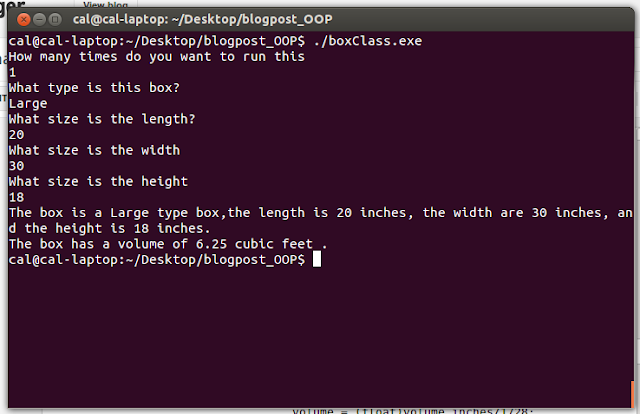 |
| Running the box class program in terminal after compilation. |
Conclusion
Making a virtual object is a useful technique in a programming language that supports object oriented programming. By understanding it as a way of seeing familiar objects, one can better analyse the real world and can be better able to use OOP as a method.
Links:
My Homepage
Page on my Website dedicated to hosting the files for this post
main_classBox.cpp
source_Box_class.cpp
box_class.h
All of the above are available under the
GPL-3.0 licence by the author. Please
contact me for permission if this code will be used for other than not for profit educational reasons. Do not republish without permission.


