Subscribe to Penguin-man the computer guy

Showing posts with label Linux. Show all posts

Friday, May 31, 2013

Getting to Know the Linux Terminal and BASH

In my first post on Linux Commands, I gave a bunch of examples on various commands but I didn't really give much background about the Terminal, the terminal environment, and the scripting language. Today when we say we are using Linux Commands most people in the field will understand that we are referring to a specific kind of scripting language that works on UNIX-like environments; specifically, this usually means BASH commands and scripts. But what is BASH, a terminal, or a terminal emulator?

In short we should get a few basics straight. Geeks are sloppy so when we say terminal we usually mean terminal emulator. When we use the terminal, the commands we type are in BASH. BASH is a far which is a far more powerful language than DOS for Windows. Because BASH is a language, we can use it to make small programs and run them from a file.

Meet the friendly Gnome-terminal :)

The Terminal 

A terminal emulator is a program that you can use to interact with the operating system. The terminal uses text based commands and can read files to allow it to control the operating system. When using a terminal, remember that it goes by several different names including these names:
Terminal
Command Line
Command Prompt

In Ubuntu if you are running the Unity desktop (Default GUI for Ubuntu 11.10 and beyond I believe) the way to access the terminal for the first time is from the Heads Up Display (HUD). To access the HUD, press the Win key or clicking on the HUD icon with the mouse:
HUD icon button at top right had side of Unity Desktop
Once the HUD launcher opens type the name of the application in the command line; here we type "terminal". Notice that it is unnecessary to type the entire name.


Click on the terminal application. This will give you the default GNOME Terminal. Once you are using the default terminal, if you right click on the terminal icon you can lock it to the launcher... do this, if you are serious about Linux you will use the terminal all the time. Note, as seen in the picture below, if you right click on the top bar of the terminal you have more options.

Is the gnome terminal the only terminal available in Ubuntu? No, there is xterm and there is terminator; xterm is used in some light weight set ups. My preference is either the gnome terminal or terminator. I actually like terminator a lot and terminator has many more features than gnome terminal. One of these features is seen below:
Terminator can be split to show several terminals at once.
Terminal's window can be split into many segments that are each there own terminal. I do enough stuff on the terminal that this is useful at times. Of course the Gnome terminal allows tabs, but terminals split feature is far more useful. To install the Terminator terminal emulator run the following in a terminal:

sudo add-apt-repository ppa:gnome-terminator
sudo apt-get update
sudo apt-get install terminator
For more information about terminator I like this article and the terminator home page. I have not used a Mac machine yet, but they too are UNIX based so you can install terminator on a Mac too.

        fink install terminator

Terminals vs. Terminal Emulators

A terminal emulator is a GUI based application; a terminal is the screen of an OS when the the GUI is not running. As we said above, geeks are often sloppy in how they talk and say run <x> in the terminal instead of being correct and saying  run <x> in the terminal emulator; so when we say terminal we usually mean terminal emulator and assume you understand. Because many servers don't have any GUI at all, we often use the "real" terminal in them, and using a terminal is much like a terminal emulator. If you are running Ubuntu, to leave the GUI and see a terminal use the keyboard shortcut cntr-alt-F1, F2, F3, F4, F5, or F6 and to return to the GUI run cntr-alt-F7. Fun, huh? It is actually a great way to rescue a crashed GUI.

BASH

Once you feel comfortable around the actual terminal itself, it is time to meet BASH. Bash is a Unix shell that was developed by the GNU project. The BASH shell replaces the Bourne Shell which in turn replaced the Thompson shell. The Bourne shell was developed in 1977 and BASH was released in June 1989. The Thompson shell that Bourne replaced was written by Ken Thompson in 1971. If your starting to realize that the BASH tradition goes back a ways, your right... it does!!! There is a ton of documentation online and I will not try to repeat that.

BASH syntax is pretty easy... the general syntax is:
        command [arguments] <file>

BASH has a few simple commands everyone should know... here are my basics
To list files, run ls:

        ls
        ls -l
        ls -a
To change directories, run cd:

     cd /media/flashdrive/anime
To change directories to home, run cd ~

    cd ~
To change directories to root, run cd /

     cd /

To change directories back one directory (towards root) run ..

     $..
To update your Ubuntu or Debian based system run:

     sudo apt-get update 
     sudo apt-get upgrade 

Or run this which does both...

    sudo apt-get update && sudo apt-get upgrade 

Saturday, May 18, 2013

Dennis Richie- A Personal Hero

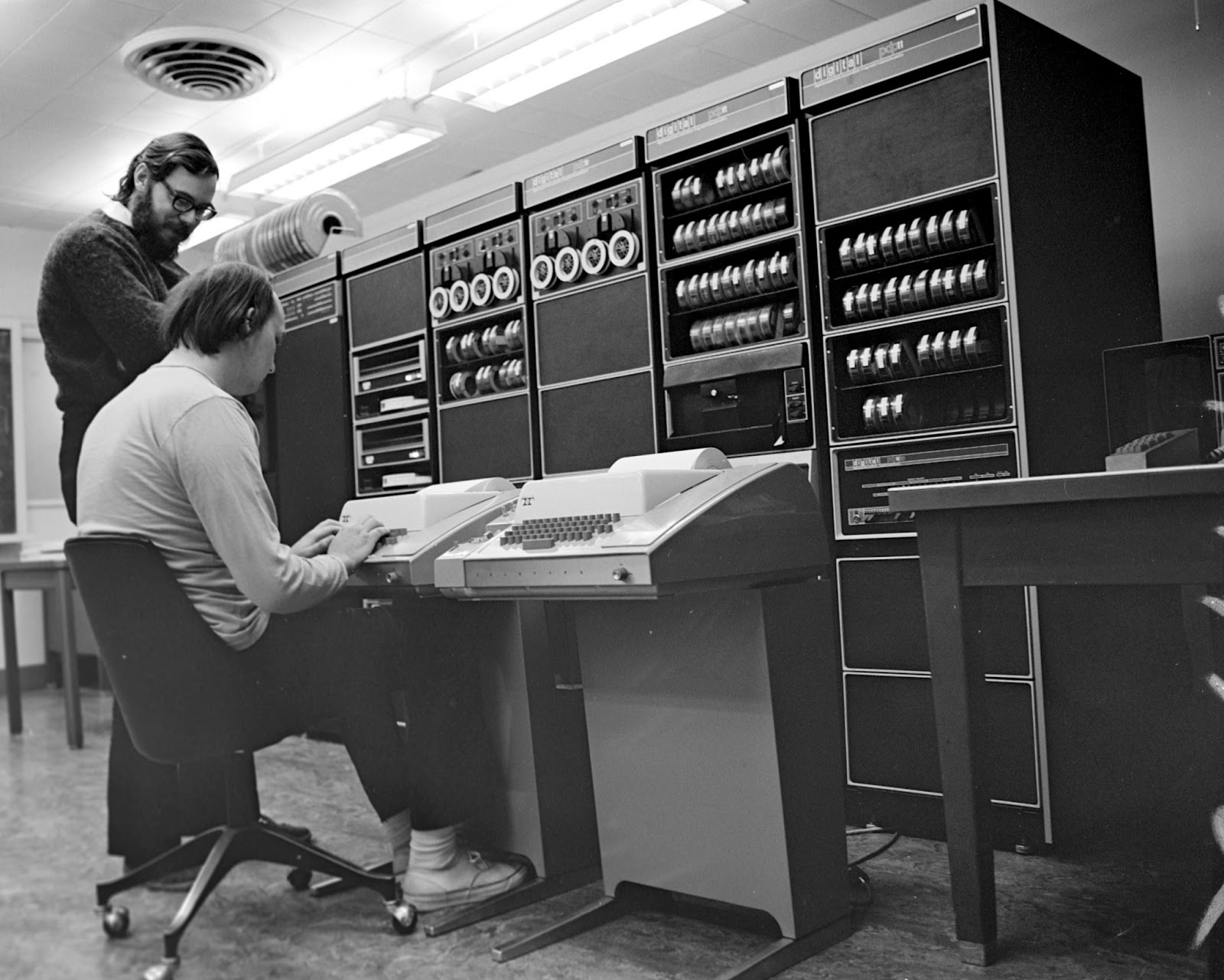
A conversation last night with a friend made me think about one of my personal heroes... Mr. Dennis Ritchie. Along with his coworker Ken Thompson, Ritchie is the father of the C programming language... which makes him father of every modern programming language. If that was not enough, he is also father of the UNIX Operating system and grandfather of Linux. To the uninitiated, that means that all Apple OS X machines, all androids, 90% of internet servers run on Ritchie's operating system. Mr Ritchie died one week after Steve Jobs. Ritchie may have been forgotten by the public but he will always be a hero to me...

Dennis Ritchie the computer scientist that created many of the tools of the modern era of computers was born on September 9, 1941 and was found dead in his home where he lived alone on October 12, 2011. While the world gushed over the loss of Steve Jobs, Ritchie's death garnered little attention. To some deeply involved in the computer community, this seemed terribly unfair. http://www.zdnet.com/blog/perlow/without-dennis-ritchie-there-would-be-no-jobs/19020
Jobs got rich selling computers running the operating system that Ritchie had created, and Gate's fortune is built on the Windows OS believed to be largely written in C, the language that Ritchie wrote.


In case someone didn't get the significance of the "goodbye world" by Ritchie's picture, it is twist on the traditional first program that is always taught in any programming language. In researching this, I decided to find out where the traditional "Hello World" program came from among programmers, and Richie's iconic book may have been one of the first places it was used. Some references claim a version of the first "Hello, World!" program appeared  as part of the documentation for the BCPL programming language. If this is true, Brian Kernighan wrote the first "Hello, World!" program prior to the 1978 printing of the "C Programming Language" by Ritchie and Kernighan. https://en.wikipedia.org/wiki/Hello_world_program Either way, the "Hello World!" best known and loved is the traditional hello world program in ANCI C, Ritchie's language:

#include <stdio.h>

int main(void)
{
    printf("Hello, world!\n");
    return 0;
}

Some quibble about whether a "Hello, World!" traditionally  is written with the first letters capitalized or not, or whether there should be exclamation marks behind it. Never mind all that, Hello World is the first programming accomplishment of thousands, perhaps millions of coders including me. In changing it to "goodbye world", we mournfully commemorate one of the greatest hackers of all times.

It is nearly impossible to imagine a world without C and UNIX. These two innovations along with there numerous derivatives like C++, Objective C, C# and the Linux, BSD, and Android families of operating systems are so pervasive. It could be said that almost all modern programming languages  were derived from C in some sense. 


Bell Labs, Ritchie's employer, still has his homepage posted; I found it to be fascinating and it has many links that any geek will love. 
http://www.cs.bell-labs.com/who/dmr/ Among the links is PDF of the 1972 UNIX manual and many other delightful things. http://cm.bell-labs.com/cm/cs/who/dmr/1stEdman.html Also, Dennis Ritchie's classic book on C is still available through many online sources. http://www.amazon.com/gp/bestsellers/books/3952.

Ritchie's legacy will not vanish quickly, and we can be thankful to have the achievements of Dennis Ritchie to stand on. A wise man said that "If I have seen farther it is because I have stood on the shoulders of giants." More than once it has been said that every one of us stands on the shoulders of Ritchie.

Friday, May 10, 2013

Linux Commands

For several years I have been using Ubuntu Linux and overall have become a real enthusiast. I'm sure some old hats might call me a newbie still, and it is true that I still am learning a lot. In some ways, I feel like it takes 2-3 years to get comfortable enough with Linux to start really enjoying it. Anyways, the other day I started taking notes on the normal, and especially the not so normal tasks I do on the terminal. You know there are some things that I just don't do that often... and when I need to do them, I start to wonder, "How did I do that last time? I know it was easy but I can't remember how to do it!!!"

Well, the solution is to write down the commands, so that I would remember them. This is a kind of self documentation of sorts, and I first started doing this maybe a year ago. I more recently started trying to teach someone Linux, and they needed some basics written down. So I've put several of these together and here it is. Feel free to critique, copy, and edit. This is a work in progress that is made to be saved as a .sh in order to be able to see the markup.

-Cal


# Misc Linux Commands
#
# OS:            Using Ubuntu 12.10 Desktop Version
# Author:      Calvin R. Johnson
# Date:          Last update 5-19-2013
# Credits:      Numerous Internet Sources


# Basic Commands

       # To update run:
       sudo apt-get update
       sudo apt-get upgrade

       # Or run this which does both...
       sudo apt-get update && sudo apt-get upgrade

       # Navigate Through Your Filesystem and Directories

               # To change directories run cd
               cd <'path to file'>
               #example is:
               cd /media/flashdrive/anime

               # To change directories to home, run cd ~

                                cd ~

               # To change directories to root, run cd /

                                cd /

               # To change directories back one directory (towards root) run ..

                                $..

                # To List directories run ls:
                        ls
                        syntax = ls (options)
                                ls -l

                # To clear Terminal

                        clear

                # To close Terminal

                        exit

       #To copy files use cp or rsync

       # To use cp (copy)
       cp /media/flashdrive/anime/picture1.jpg /home/heather/pictures/picture1.jpg

       # Or use rsync to copy o whole directory (folder)
       #syntax is:
       rsync [options] <'source'> <'destination'>
       #example
       rsync -avi /media/flashdrive/anime/ /home/heather/pictures/
       #the above copies directory anime from flashdrive to pictures

       # To install software
       # Using apt-get
       sudo apt-get install <'package'>

                        # Before installing many packages, one must add the source or ppa
                        # You will find the ppa listed in the instructions for installing the package
                                sudo apt-add-repository ppa:<package>
                                # Example of adding ppa
                                sudo add-apt-repository ppa:webupd8team/gnome3
                                # Then update
                                sudo apt-get update
                                # Now install
       sudo apt-get install <'package'>
                        # NOTE
                                #When you add a PPA, a new .list file is created under /etc/apt/sources.list.d/.
                                # The files are named based on the PPA name and your Ubuntu version, like this: "someppa-ppa-oneiric.list".
                               
                                # To edit these PPAs, run:
                                        sudo gedit /etc/apt/sources.list.d/*
                        # To remove a ppa
                               sudo add-apt-repository --remove ppa:someppa/ppa
                        # PPA purge
                                sudo apt-get install ppa-purge
                                sudo ppa-purge ppa:someppa/ppa

                # To Find a file
             
                        find file_name

                # Using Wildcards to help find a file

                                find partial_file_name* # or
                                find *partial_file_name

                        # You can also use the wildcard to list file types

                                find *.mp3 # or any other file extension


#************************************************************************************************
# Linux Networking Commands

        # Look up Information:

                sudo ifconfig
                # in windows, >ipconfig

        # To Release and Renew IP Address:

                sudo dhclient

        # To Restart the Networking Service:
        # Always Restart the Networking Service After Changing Network Configurations

                sudo /etc/init.d/networking restart # also (start, stop)

        # Network Config file
        # To Edit the Network Adapter Configurations

                sudo gedit /etc/network/interfaces

        #To Edit the DNS Resolution File

                sudo gedit /etc/resolv.conf

        #To See Current Hostname

                sudo /bin/hostname

        # Hostname
                #To Echo Hostname

                        sudo /bin/hostname newhostname

                #To Change Hostname

                        sudo /bin/hostname newhostname

        # Ping -- To Determine if You Can See an IP Address

                ping <IP Address>

        # To Determine DNS is Working

                ping <domainname>

        # UFW firewall

                # To Change Default Handling of Ports When UFW is Enabled:

                        sudo ufw default allow/deny

                # To Turn UFW on or Off:

                        sudo ufw enable/disable

                # To Open or Close Ports for Everyone:
             
                        sudo ufw allow/deny port#

                # To Delete a UFW Rule:

                        sudo ufw delete allow/deny port#

                # To Allow Access to All Ports from a Specific IP Address:

                        sudo ufw allow from IP Address

                # To Allow Access to a Specific Port from a Specific IP Address:

                        sudo ufw allow from IP Address to any port port#

        # SSH and FTP
                # SSH -- Secure Shell

                        #Install SSH on Server:

                                sudo apt-get install ssh
                                # SSH Requires Port 22
                                # Use a Terminal Emulator to Connect to the Server (PuTTy)

                        # To check the UFW Firewall
     
                                sudo ufw status

                #FTP -- File Transfer Protocol
                        # Install FTP Server

                                sudo apt-get install vsftpd

                        # Edit vsftpd Configuration Files

                                sudo gedit /etc/vsftpd.conf

                                        #Uncoment
                                                #local_enable=YES to Allow Local Users to Login
                                        #Uncomment
                                                #write_enable=YES to Allow File Uploads

                        # To Restart vsftpd Service:
                                sudo service vsftpd restart

                        # Use an FTP Client to Connect to FTP Server (FileZilla)


#*************************************************************************************#
# Some software installation instructions for Ubuntu 12.10 customisations script
        #Terminal Applications

         # SSH
          sudo apt-get install openssh-server


         # g++ & gcc

          sudo apt-get install build-essential

         # gcc for objective C
         sudo apt-get install gobjc


         # Valgrind
         sudo apt-get install valgrind

         # Python

          sudo add-apt-repository ppa:fkrull/deadsnakes
          sudo apt-get update
          sudo apt-get install python2.6 python2.6-dev


         # Ruby

          sudo apt-get install git build-essential

         # Java
         # sudo add-apt-repository ppa:webupd8team/java
         # sudo apt-get install oracle-java7-install
         # sudo apt-get update
         # sudo apt-get remove oracle-java7-installer

         # R

          gpg --keyserver keyserver.ubuntu.com --recv-key E084DAB9
          gpg -a --export E084DAB9 | sudo apt-key add -
          gksudo gedit /etc/apt/sources.list
          # add this line to the bottom of sources.list
          # deb http://cran.ma.imperial.ac.uk/bin/linux/ubuntu precise/
          sudo apt-get update
          sudo apt-get install r-base

        #GUI Apps
         # gedit

          sudo apt-get install gedit
          sudo apt-get check gedit


          sudo apt-get install gedit-plugins

         # Gmate-gedit (for Ruby on rails developers)
         sudo apt-add-repository ppa:ubuntu-on-rails/ppa
         sudo apt-get update
         sudo apt-get install gedit-gmate


         # SciTE

          sudo apt-get install scite
          sudo apt-get check scite

         # Openoffice/libreoffice

          sudo apt-get install libreoffice
          sudo apt-get check libreoffice

         # startup disk creator

          sudo apt-get install usb-creator-gtk
          sudo apt-get check usb-creator-gtk

         # transmition bit torrent

          sudo add-apt-repository ppa:transmissionbt/ppa
          sudo apt-get update
          sudo apt-get install transmission-gtk
          sudo apt-get check transmission-gtk

         # firefox

          sudo apt-get install firefox

         #  Chrome

         # wget https://dl.google.com/linux/direct/google-chrome-stable_current_i386.deb  #32bit version

          wget https://dl.google.com/linux/direct/google-chrome-stable_current_amd64.deb
          sudo dpkg -i google-chrome*
          sudo apt-get -f install

         # Chromium
  
          sudo apt-get install chromium-browser

         # VLC
       
          sudo apt-get install vlc

         # XBMC
                        sudo add-apt-repository ppa:team-xbmc
                        sudo apt-get update
          sudo apt-get install xbmc

         # Texmacs

          sudo apt-get install texmacs

         # Audacious Music Player

          sudo apt-get install audacious

                #       OpenShot Video Editor
                        sudo add-apt-repository ppa:jonoomph/openshot-edge
                        sudo apt-get update
                        sudo apt-get install openshot openshot-doc

        # Utilities

                # compizconfig-settings-manager
                        sudo apt-get install compizconfig-settings-manager

                # Gparted disk editor
                        sudo apt-get install gparted

                # PPA purge
                        sudo apt-get install ppa-purge
                        #sudo ppa-purge ppa:someppa/ppa

                # Ubuntu Tweak
                        sudo add-apt-repository ppa:tualatrix/ppa
                        sudo apt-get update
                        sudo apt-get install ubuntu-tweak

                # Play encripted DVDs
                        sudo apt-get install libdvdcss2 && sudo /usr/share/doc/libdvdread4/./install-css.sh

                # Extra (Non-Free Codecs)
                        sudo apt-get install non-free-codecs libxine1-ffmpeg gxine mencoder totem-mozilla
                                icedax tagtool easytag id3tool lame   nautilus-script-audio-convert libmad0 mpg321 mpg123libjpeg-prog